USB Connector Cast Phone to TV
- 3.6
- Rating
- 1.00M
- Installs
- Free
- Price
 Analysis by App-foxy
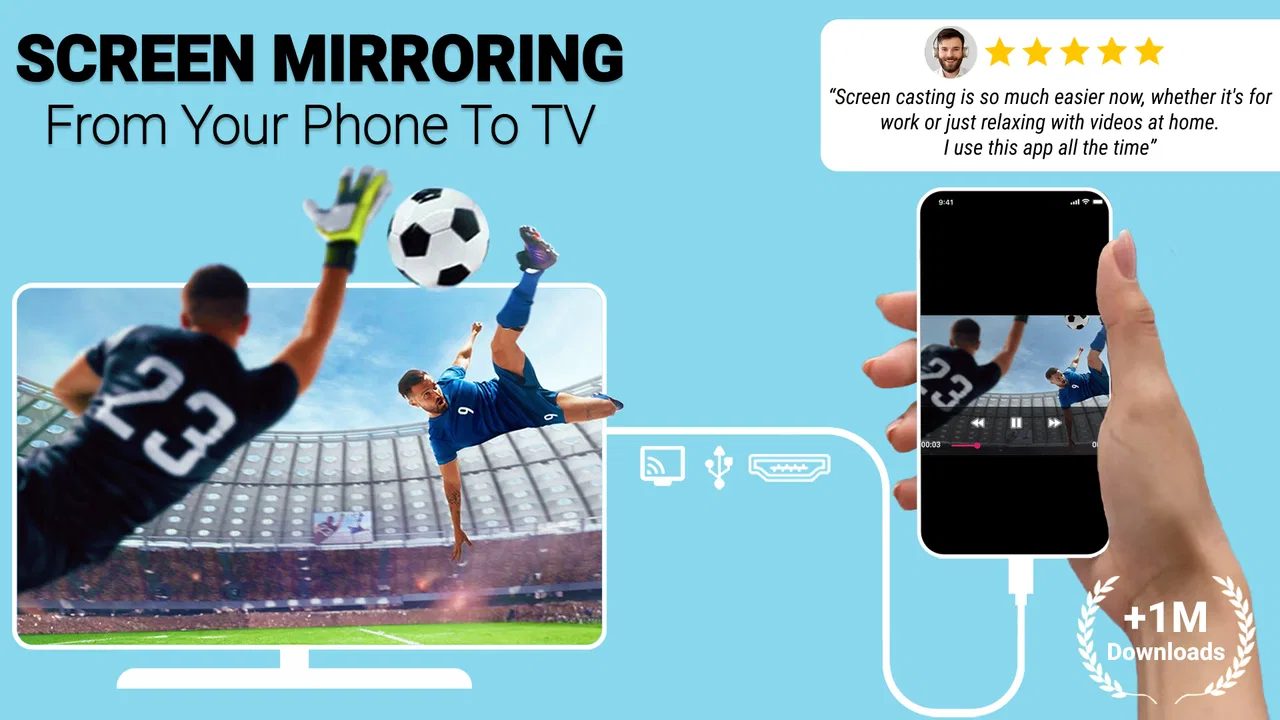
I approached USB Connector Cast Phone to TV as a practical screen-sharing tool rather than a complete entertainment platform. Its purpose is straightforward: help connect a phone to a television through HDMI, USB, or Wi-Fi mirroring. That makes it interesting for anyone who wants to show phone content on a larger display without immediately buying a separate streaming device.
My overall impression is mixed but useful. The app can be a convenient starting point when you are trying to understand your connection options, especially if your television setup is unfamiliar. At the same time, screen mirroring depends heavily on the phone, television, cable, adapter, network, and Android version involved. The app cannot remove those physical and compatibility limits, so I would not treat it as a guaranteed solution for every TV.
What the app is really useful for
Developed by Vidmark Inc., this free app sits in the Libraries & Demo section of the Android store. It is aimed at a general audience and carries an Everyone age rating. The store summary focuses on connecting a mobile device to a TV through HDMI, USB, and Wi-Fi, while the short description presents it as a USB connector tool.
You May Also Like

 Blood Strike: 2.5 Anniversary
Blood Strike’s Loadouts Turn Every Drop Into a Tactical Gamble
A close look at Blood Strike’s custom loadouts: how fast access to signature weapons reshapes its battle royale rhythm, rewards preparation, and narrows the gap between fights.

 Pandora - Music & Podcasts
Pandora’s Music Is Easy to Start, but Harder to Recover
Pandora’s strength is its low-effort path from a seed to a station. Its weak spot is how much confidence it asks you to place in connection, setup, and quiet recovery.

 8 Ball Pool
 Is Built on Rivalries, Rematches, and Routine
A close look at the rivalries, rematches, shared routines, and unanswered safety questions that turn a quick pool match into a persistent mobile community.

 Samsung Music
’s Quiet Strength Is Playing What You Already Own
Its reach comes less from spectacle than from dependable access to a personal library. That simplicity is both the app’s strongest retention engine and its ceiling.

 AccuWeather: Weather Radar
AccuWeather Review: A Quick, Clear Forecast for Everyday Decisions
For everyday plans, the best forecast is the one you can understand quickly. AccuWeather makes rain timing, radar, and local conditions easy to act on, with a few trade-offs.

 Hill Climb Racing
Why Hill Climb Racing Still Turns Crashes Into One More Run
A tiny car, a bumpy hill and one more upgrade: Hill Climb Racing keeps resurfacing because its simple chaos makes every near-miss feel personal.
More From Our News Desk
View All News


That wording is important because this is not the same thing as a television operating system or a full media player. Its value is in helping you bridge the gap between a phone and a larger screen. I found that distinction useful when deciding what to expect. If your goal is to display photos, demonstrate an app, show a document, or share a local video with people in the same room, this kind of utility can make sense.
It is less convincing if you expect the application alone to turn any ordinary USB port into a universal video output. A USB connection can mean different things on different phones and televisions. Some devices support video output through a compatible adapter, while others use USB mainly for charging or file access. The app may guide the process, but the hardware still decides whether the connection can work.
The same applies to Wi-Fi mirroring. A stable wireless network is usually more important than the app interface itself. If the phone and TV are separated by a weak signal, or if the television does not support the relevant casting or mirroring method, the experience can become slow or fail before the app has much opportunity to help.
Speed depends more on the connection path than the app
When I think about perceived speed here, I separate the app’s own responsiveness from the speed of the mirrored picture. A lightweight connection utility should generally feel quick to open and navigate, but the visible result on the TV depends on how the image travels from the phone to the display.
HDMI-style connections are the option I would consider first when timing matters. A suitable wired setup avoids much of the congestion and interference that can affect wireless mirroring. It is also the more sensible route for showing something where delays are distracting, such as a live demonstration or a presentation that requires tapping the phone and seeing the result immediately.
Wi-Fi is more convenient because it removes the cable, but convenience comes with trade-offs. A wireless mirror may feel perfectly acceptable for photos or a web page and then become less comfortable when the screen changes rapidly. Even a small delay can be noticeable when scrolling, typing, or controlling a game. I would not choose this app as my main gaming display solution unless I had already tested the exact phone and TV combination.
USB connections sit somewhere in between from a practical perspective. They can feel dependable when the phone and adapter support the required video standard, but the cable alone is not enough. Before blaming the app, I would check whether the phone supports wired display output, whether the adapter is designed for video rather than charging, and whether the television is set to the correct input.
The most useful speed tip is to choose the connection before choosing the app settings. If the task is time-sensitive, start with a compatible wired route. If the task is casual viewing and you want to move around freely, try Wi-Fi, but keep expectations realistic about delay and image stability.
How it behaves during heavier everyday use
The demanding moments are not necessarily when the app is open by itself. The pressure comes when the phone is simultaneously rendering content, maintaining a wireless connection, powering an adapter, and possibly handling audio or another active application. That combination can make a simple mirror session feel much less predictable than displaying a still image.
A useful everyday scenario would be a family gathering where several people want to see photos stored on one phone. In that situation, a short wired session may be preferable because it avoids passing the phone around and reduces the need for everyone to understand the TV’s menus. I would prepare the cable and adapter first, open the photos before connecting, and keep the phone awake so there are fewer interruptions while people are looking at the screen.
For a work or study presentation, I would take a different approach. I would test the complete route before the meeting, including the display input, cable, adapter, and the app’s connection flow. I would also keep a local copy of the key material on the phone rather than relying on a page that might reload. This is not because the app is necessarily unstable; it is because mirroring adds several possible points of failure.
Video is another case where expectations need care. A locally stored clip may be easier to mirror than content that is being streamed over the internet while the phone is also sending its screen to the TV. In the second situation, the phone is handling both network activity and display transmission. If the picture pauses, the cause may be the network or the source app rather than USB Connector Cast Phone to TV itself.
I would also avoid judging the app during a long session with a nearly empty battery. Wireless mirroring can be inconvenient when the phone needs charging at the same time, and some wired arrangements require a special adapter that allows charging alongside video output. That is a hardware workflow issue, but it strongly affects how practical the application feels.
For gaming, my recommendation is cautious. A mirrored game can be enjoyable for turn-based titles or simple demonstrations, where a little delay is not important. Fast action games are a different story. The phone remains the controller and the TV becomes the visual output, so even modest latency can make controls feel disconnected. A direct console, a native TV game, or a purpose-built casting setup may be a better choice.
Reliability and what to do when the picture disappears
The reliability of a screen-mirroring session is best understood as a chain. The phone must support the connection, the adapter or network must carry it, the TV must accept it, and the correct input or mirroring mode must be selected. The app is one part of that chain, not the entire chain.
When a connection fails, I would troubleshoot in a fixed order instead of repeatedly tapping the same button. First, I would confirm that the television is on the intended input. Next, I would check the cable ends and adapter, then verify that the phone is unlocked and that the required connection method is active. For Wi-Fi, I would make sure the devices are using the same local network and move closer to the router if the signal is questionable.
If the screen was working and then stopped, I would reconnect from the beginning rather than assuming the session will recover automatically. Disconnecting the cable, closing the connection flow, and starting again can clear a temporary handshake problem. Restarting the phone or TV is not elegant, but it is sometimes faster than trying random settings.
Another practical recovery step is to reduce the number of things happening at once. Close apps that are playing audio or video in the background, stop a large download, and avoid switching repeatedly between portrait and landscape while establishing the connection. These steps do not create compatibility where none exists, but they make troubleshooting easier by removing distractions.
I would also keep the phone’s screen from locking during an important demonstration, while remembering that this can increase battery use. On a long session, place the phone somewhere with good airflow and use a charging arrangement that does not put strain on the connector. A loose cable can look like an app failure when the real problem is physical movement.
My experience with tools in this category is that reliability improves when the workflow is simple and repeatable. The best setup is not necessarily the one with the most options. It is the one where you know which cable, input, and connection method work with your particular devices.
Device limits matter more than the download itself
The app supports Android versions starting with Android 8.0, which gives it a reasonably broad range of compatible phones. That requirement does not mean every phone running that version can output video through USB or HDMI. Operating-system compatibility and hardware video-output support are separate questions.
This is the first check I would make before spending money on an adapter. Look up the phone model’s video-output capability, not merely whether it has a USB port. A modern-looking connector does not automatically provide HDMI output. Some phones can mirror wirelessly but not through a cable, while others may support a wired route only with a particular standard.
The television matters just as much. An HDMI input is designed to receive a compatible signal, but a regular USB port may not accept a phone’s live display. If the TV has built-in wireless mirroring, that may be more convenient than trying to force a USB workflow. If it does not, a separate streaming device may offer a clearer and more consistent experience.
There is also a difference between mirroring and transferring files. A USB cable can let a television or computer browse stored photos in some situations, but that is not the same as showing everything happening on the phone in real time. I would decide whether I need a live display or simply want to copy media before choosing the connection method.
Permission prompts and system behavior can also affect the first attempt. Android may ask you to approve a connection, select a USB mode, or allow the phone to interact with another device. I would read those prompts rather than dismissing them quickly. If the app appears ready but the TV remains blank, the missing step may be a system selection outside the app.
Resource demands are likely to be most noticeable during active mirroring rather than ordinary browsing. The phone may use more battery, generate more heat, and work harder when displaying fast-changing content. I would not run a demanding game, a video call, and a mirror session together unless necessary. A simple photo presentation is a much lighter use case than continuous high-motion video.
Where it beats familiar alternatives, and where it does not
Compared with using a dedicated streaming stick, this app can be appealing when you already have a compatible phone, cable, adapter, and television. There is no need to learn another remote control for a quick one-off display. It can also be more direct than uploading photos or videos to a separate service just to show them in the living room.
Compared with the mirroring tools built into Android or a television manufacturer’s software, its advantage is mainly convenience for people who want one place to explore connection methods. However, a built-in feature may be better integrated with the phone and TV. If your devices already recognize each other reliably, I would normally prefer the native route because it removes an extra layer.
Compared with a wired desktop-style presentation setup, Wi-Fi mirroring is easier to move around but usually less predictable under interference. Compared with a dedicated streaming device, the phone-based approach keeps control in your hand but also makes the phone responsible for the session. That can be inconvenient if you need the phone for messages, calls, navigation, or another task.
The app is therefore best for occasional, practical sharing rather than as the foundation of a permanent home theater. It suits someone who wants to try connecting a phone to a TV and is willing to test the hardware combination. It is less suitable for someone who expects a single tap to overcome incompatible ports, unsupported standards, or a weak network.
The commercial details are also worth keeping in mind. The app is free to install, while in-app purchases are listed from $9.99 to $99.99 per item. I would examine any purchase screen carefully and test the basic connection path before paying for anything. A paid option cannot make a phone support a video standard that its hardware does not provide.
My performance verdict after weighing the trade-offs
USB Connector Cast Phone to TV is a reasonable utility for people exploring ways to put phone content on a larger screen, but I would judge it alongside the hardware rather than in isolation. Its strongest use is a short, prepared session: showing photos, sharing a document, demonstrating an app, or playing a local clip when the phone and TV already support the chosen connection route.
I would choose HDMI or another compatible wired method when responsiveness and stability matter most. I would use Wi-Fi when avoiding cables is more important than perfect timing. I would treat USB as a connector option that requires careful checking, not as proof that every phone and TV can exchange a live picture.
The app has reached over a million installs and holds an average rating of 3.5 from around eleven thousand ratings, which suggests that it has attracted a sizeable audience while producing a varied experience. Its current version is 2.0.4, and the release history began on May 23, 2018. Those details give useful context, but they do not replace testing your own setup.
My recommendation is simple: install it if you have a clear screen-sharing task and are prepared to verify compatibility. Before an important presentation or family event, test the complete connection at home, keep a backup cable or presentation method nearby, and learn which TV input you need. If you require consistently low latency, professional reliability, or a permanent living-room solution, a native TV feature, a compatible wired adapter, or a dedicated streaming device may serve you better.
For casual Android users, the app can be worth trying because it brings several connection ideas together in one place. Just remember that its real performance is shaped by the phone, television, network, and accessories around it. It is a useful helper for a compatible setup, not a universal fix for every screen-mirroring problem.
FAQs for USB Connector Cast Phone to TV
01How does USB Connector Cast Phone to TV work?
USB Connector Cast Phone to TV allows you to mirror your smartphone screen onto your TV using a USB connection. Once connected, the app facilitates the transfer of video and audio signals, enabling you to enjoy your phone’s content on a larger screen. It supports various file formats and provides a seamless streaming experience.
02What types of devices are compatible with this app?
The app is compatible with most Android and iOS devices that support USB OTG (On-The-Go) functionality. Additionally, your TV must have a USB port and support screen mirroring capabilities. It’s advisable to check both your phone and TV specifications to ensure compatibility before downloading the app.
03Is there any additional hardware required to use this app?
Yes, you will need a USB cable to connect your phone to the TV. While the app itself facilitates the connection, the physical USB cable acts as the medium between the devices. For optimal performance, use a high-quality cable that supports data transfer and not just charging.
04Are there any subscription fees or in-app purchases involved?
USB Connector Cast Phone to TV offers a free version with basic functionalities. However, to access premium features like ad-free streaming and enhanced resolution settings, users may need to purchase a subscription or make in-app purchases. Pricing details are available within the app.
05What are some potential issues users might face when using this app?
Some common issues include connection failures due to incompatible devices, low-quality cables, or outdated software on your phone or TV. Users may also experience latency in video streaming or audio-video sync problems. Ensuring all devices are updated and using a high-quality cable can mitigate these issues.
Pros
- Easy setup and connection process.
- Supports multiple file formats.
- No additional hardware needed.
- High-quality video streaming.
- Compatible with most smart TVs.
Cons
- May experience slight lag in streaming.
- Requires stable Wi-Fi connection.
- Limited customer support options.
- Ads can be intrusive at times.
- Not compatible with older TV models.

USB Connector Cast Phone to TV
Gallery